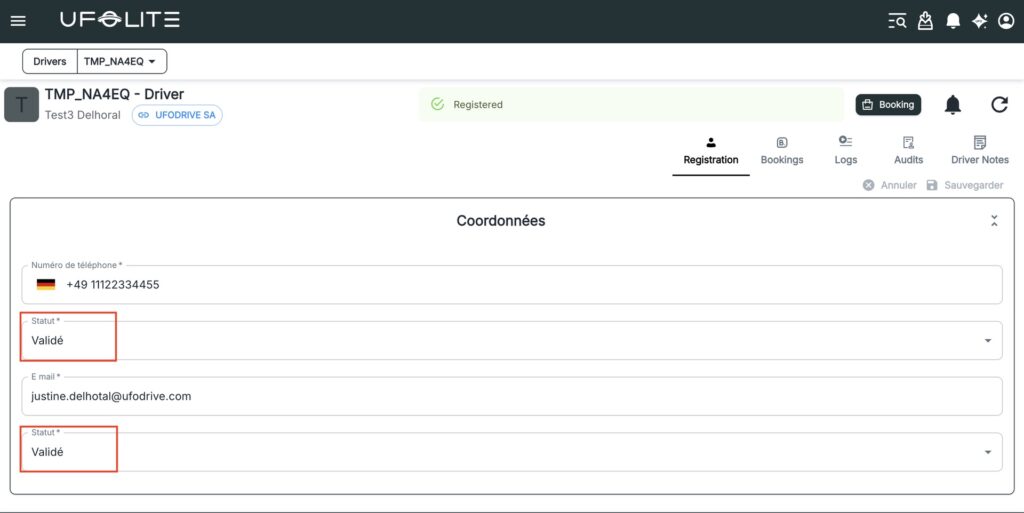
Before a driver can make a booking, they need a validated account in UFOFLEET. Validation confirms their identity, contact details, and driving licence — protecting your fleet and ensuring compliance.
Step 1: Create the driver profile
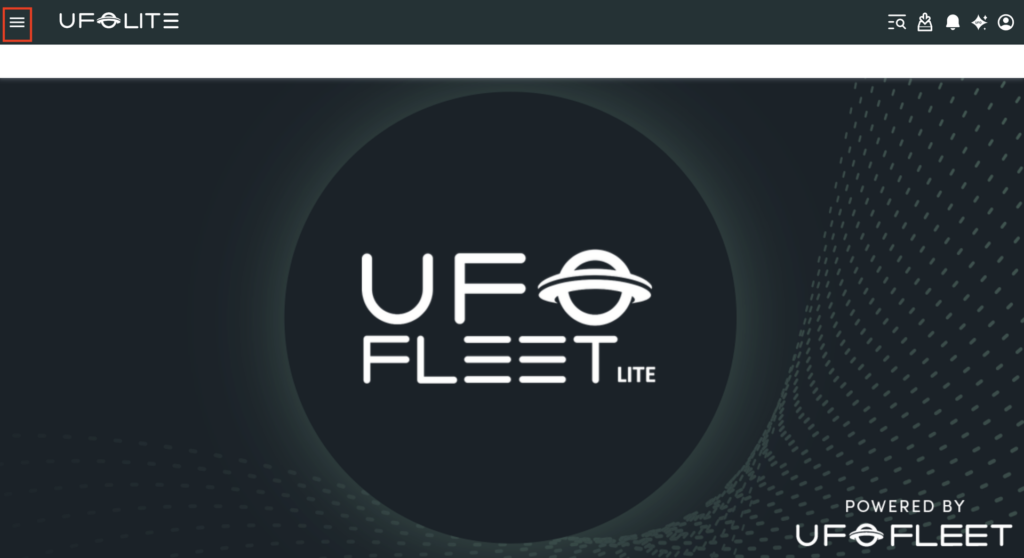
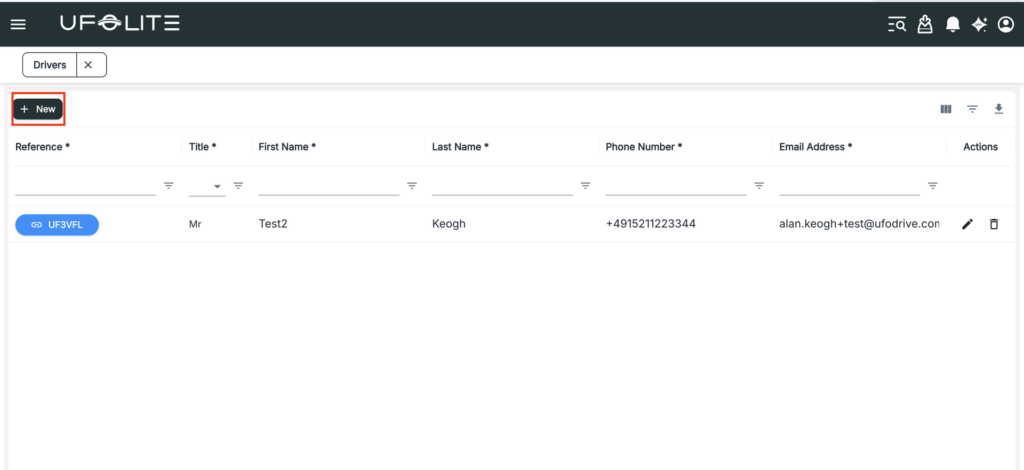
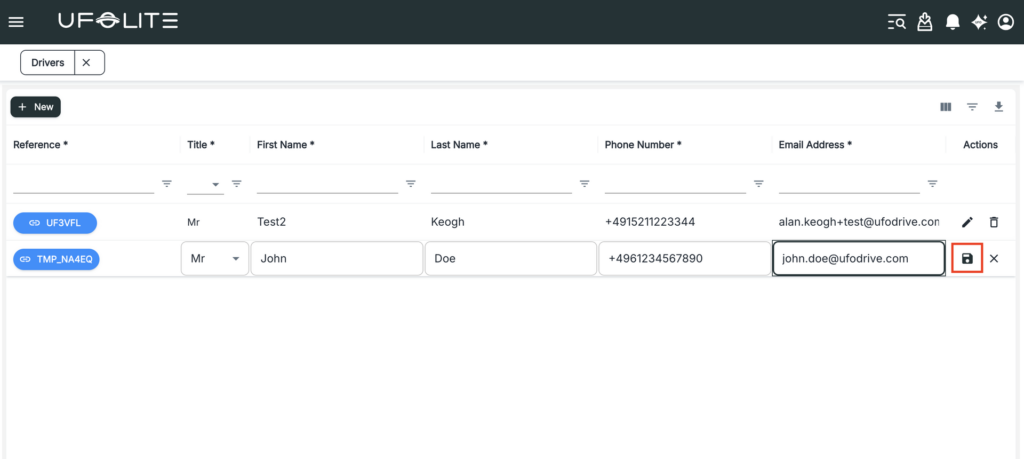
Click the hamburger menu (three horizontal bars) in the top-left corner, navigate to Drivers, and select Drivers. Click + New — a new editable row appears.
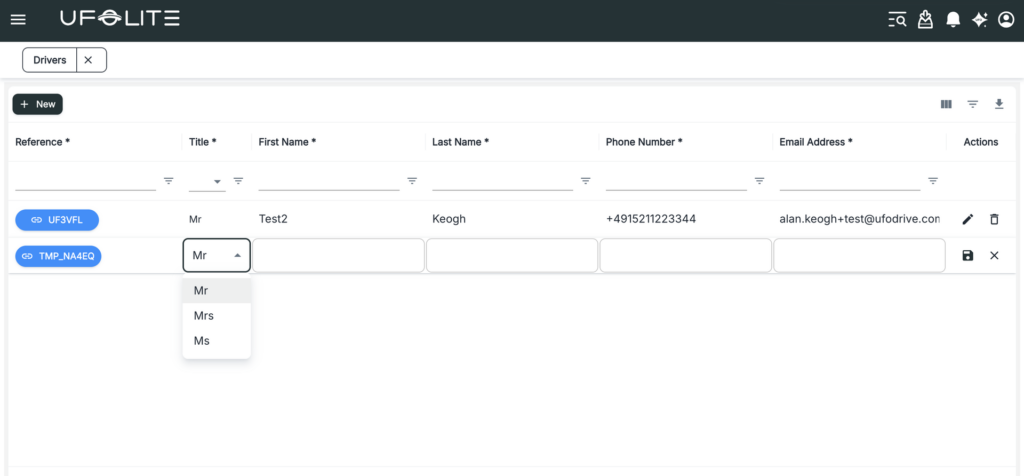
Select the Title from the dropdown, then fill in First Name, Last Name, Phone Number (correctly formatted), and Email Address (valid format). Click the save icon to save.
Step 2: Validate their driving licence
Driver self-uploads — The driver uploads their licence through the app or portal. Once uploaded, open their profile, review the document, and confirm it meets your requirements.
Agent uploads manually — If the driver can’t upload themselves, you can do it on their behalf. Before accepting, confirm: it’s clearly readable, the expiry date is valid, the name matches the account, and the licence category is acceptable for the vehicles you operate.
Step 3: Confirm the account is Active
Once the licence is validated and both phone and email show as Validated, the account status updates to Registered — the driver is ready to make bookings.