Your company profile is the foundation of your UFOFLEET account. It controls your branding, your team’s access, your subscription, and how your fleet appears to drivers in the app.
How to access it
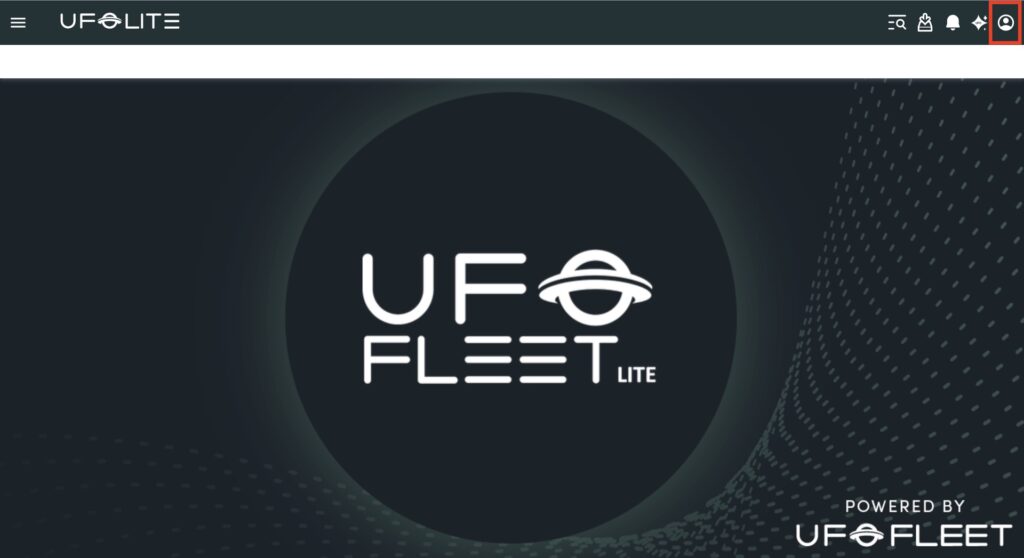
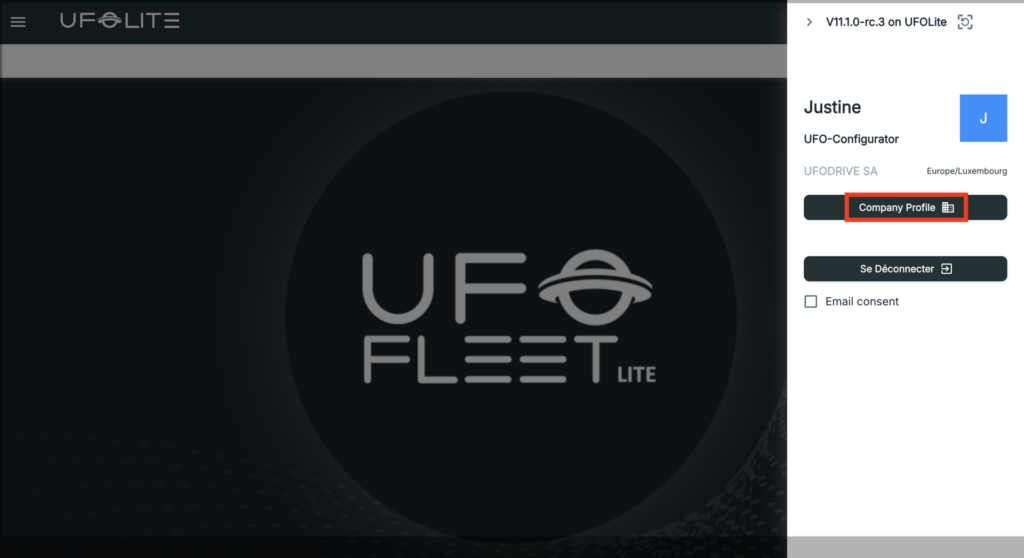
Click the user icon in the top-right corner of any screen, then select Company Profile from the dropdown.
General Info (Company tab)
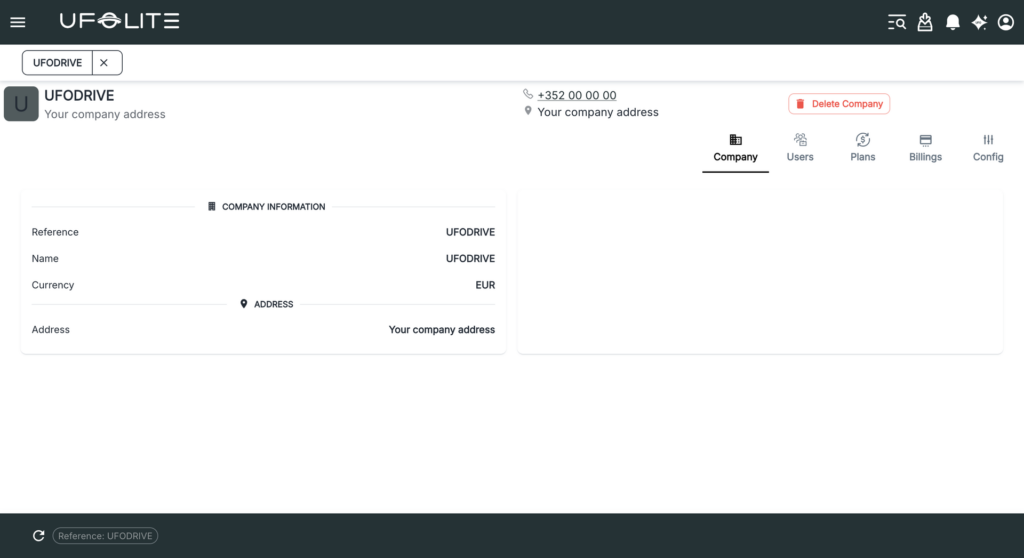
Your company name, address, currency, and logo. This appears across the platform and in driver-facing communications.
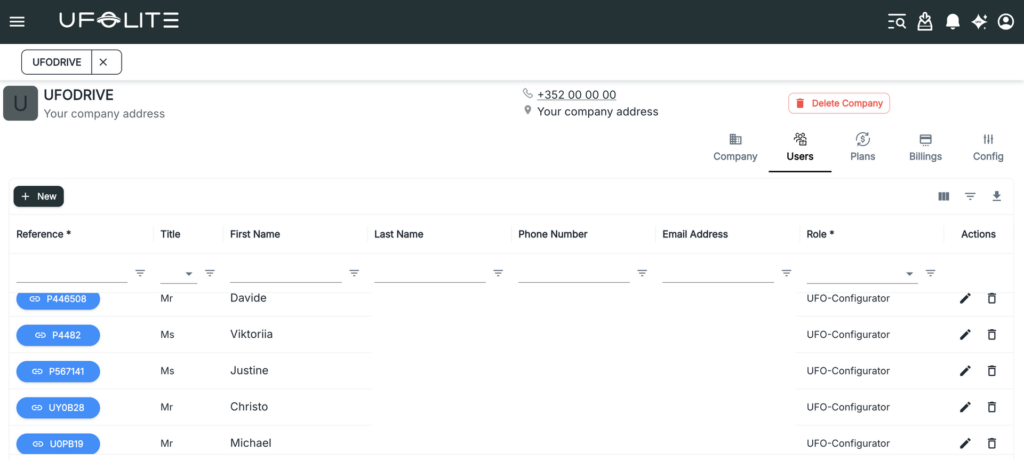
Users
Add, edit, or remove team members who have access to the platform. Each user is assigned a role — Administrator, Driver, Manager, Operator, UFO-Configurator, or UFO-Management.
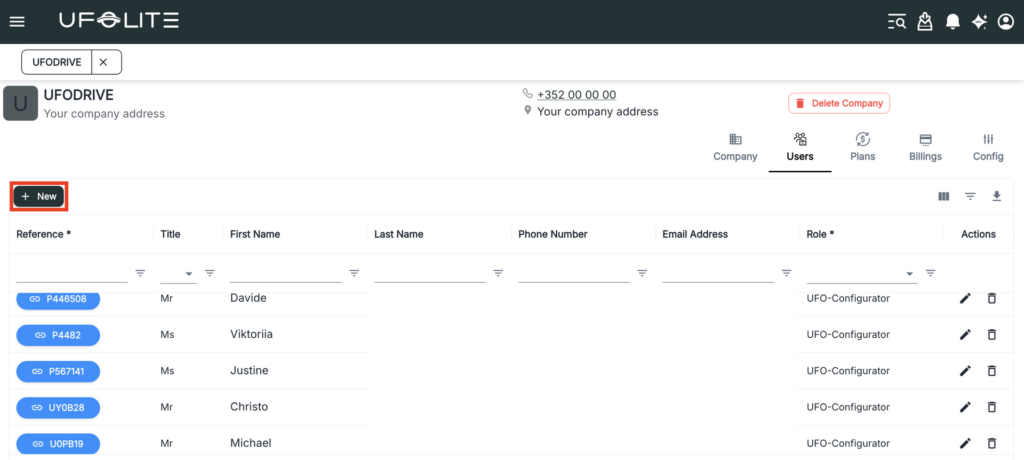
- Click + New to add a user
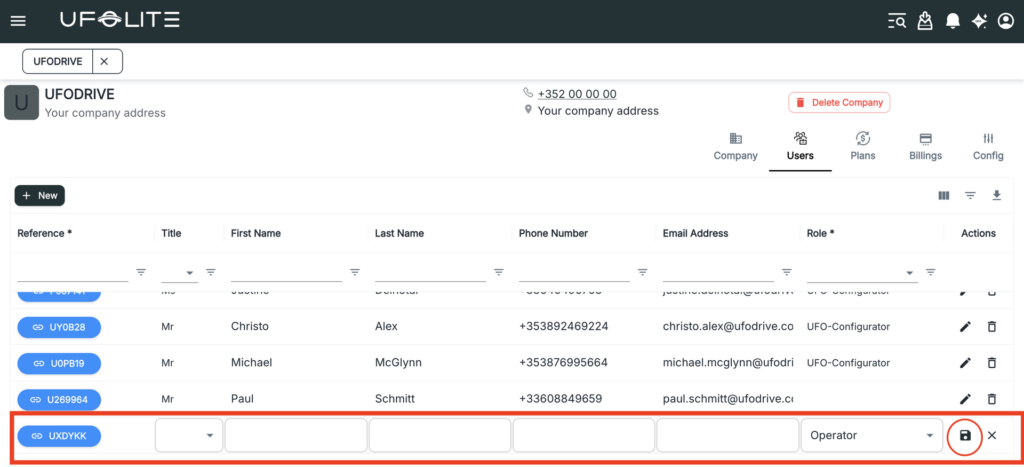
- Fill in their title, first name, last name, phone, email, and role
- Click the save icon — they gain platform access immediately
To edit a user, click the pen icon in their row. To remove a user, click the bin icon and confirm. Access is revoked instantly.
Plans
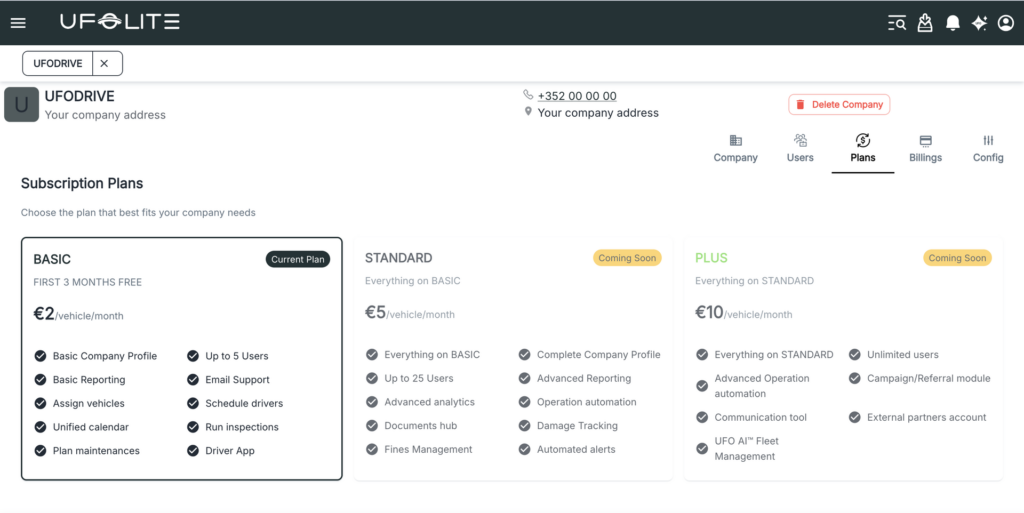
The Plans tab shows your subscription tiers — Basic (€2/vehicle/month), Standard (€5/vehicle/month), and Plus (€10/vehicle/month) — with features at each level. Your current plan is highlighted.
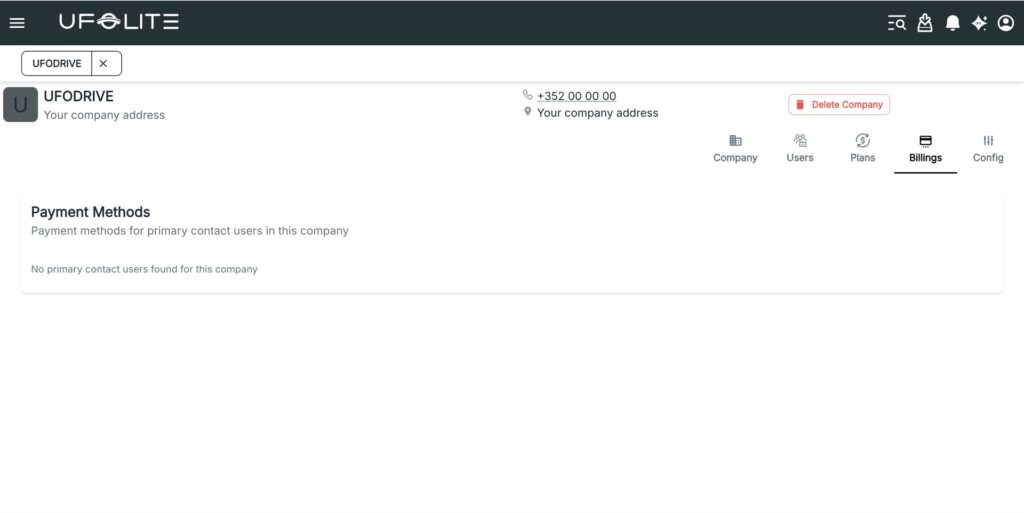
Billing
Manages payment methods for primary contact users in your company.
Config
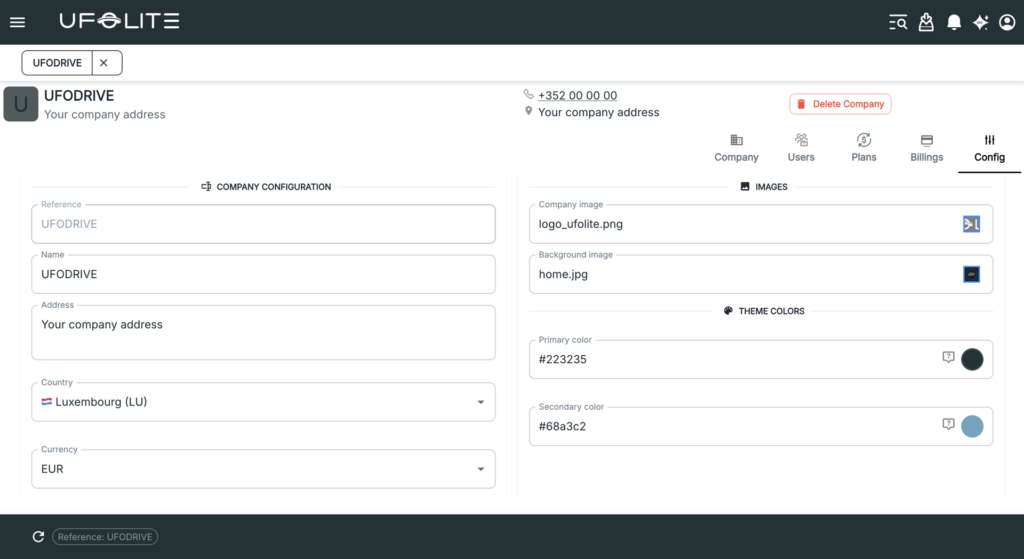
Update company reference, name, address, country, and currency. Upload your company image and background image for the driver app, and set primary and secondary theme colours.