While drivers can book through the app themselves, there are times when you’ll need to create a booking on their behalf — a last-minute request, a corporate account, or a driver who needs assistance.
How to create a booking
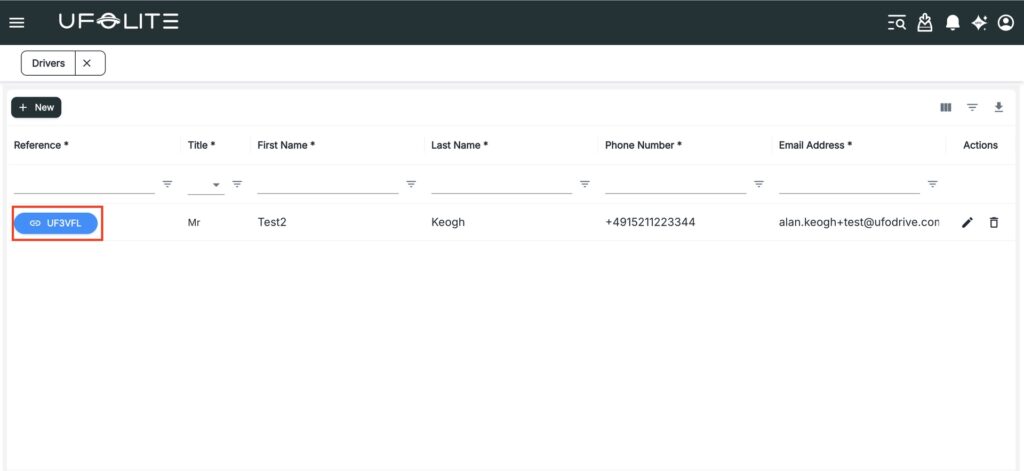
- Go to Menu → Drivers → Drivers and find the driver using the search bar (reference, name, phone, or email)
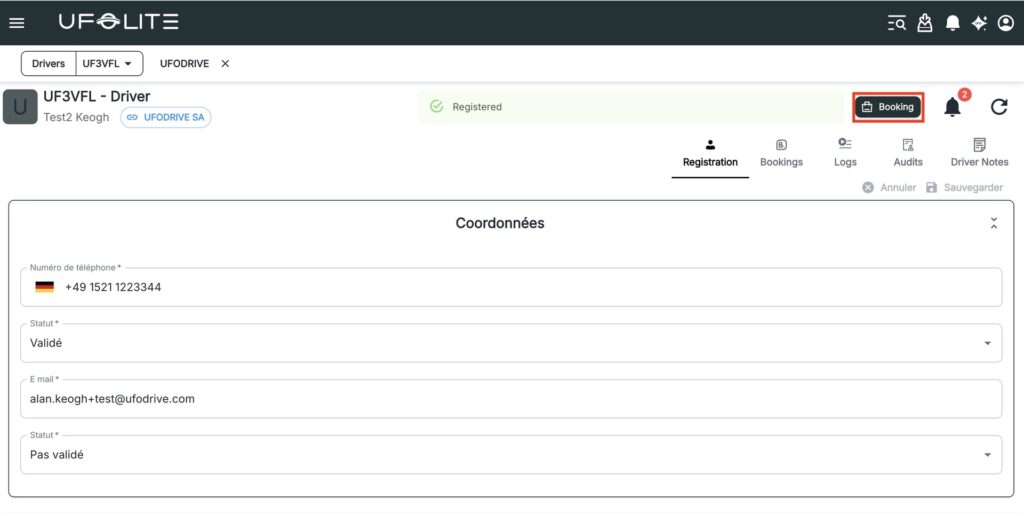
- Click the driver’s reference to open their profile
- Click the Booking icon above their documents and contact details
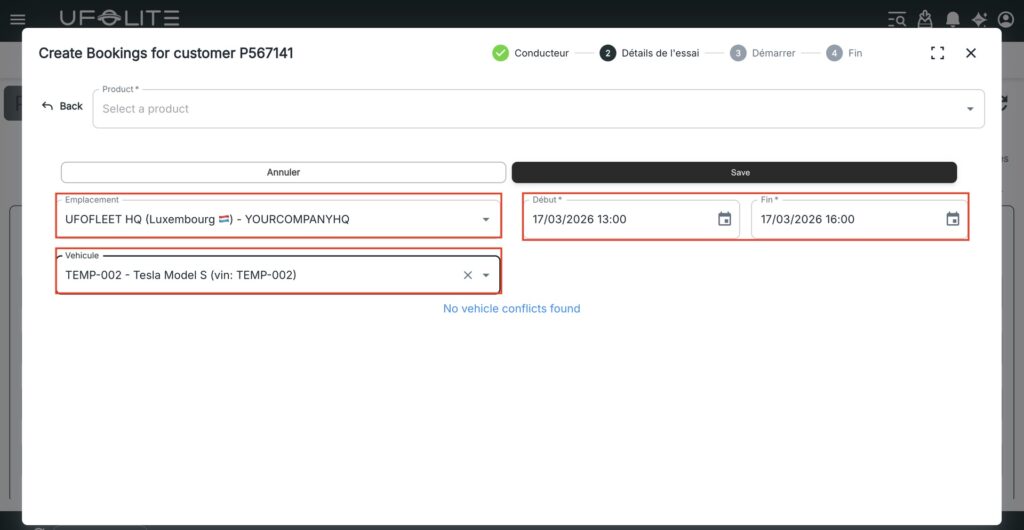
- In the New Booking window: confirm the default product, select the location, select the vehicle, and set the start and end date/time
- Click Save
ℹ️ Once saved, the booking appears in the driver’s profile, the fleet calendar, and the vehicle’s usage history. Availability updates across the platform instantly.
Common issues
| Problem | Fix |
|---|---|
| Vehicle unavailable | Select a different vehicle or adjust the booking dates |
| Booking conflict | Modify dates or assign a different vehicle |
| Driver not found | Check search details; create a profile first if they don’t exist |
| Missing required fields | Location, vehicle, and dates are all mandatory |